Operations app for takeaway & restaurants

Every shift – primed in under 5 minutes

Opening and closing routines, cleaning plans, equipment, recipes and team messages – in one app your crew actually uses. Managers follow along from their phone or laptop.

✓ Set up in under 5 minutes ✓ No lock-in ✓ Danish & English ✓ iPhone, Android & web
Checklists in the app
📋

Paper checklists go missing

The sheet on the fridge is gone and nobody remembers whether closing was done last night. In the app it is logged with a name and a timestamp.

🙋

New staff ask about everything

"How do we make that sandwich?" – recipes with photos and steps live in their pocket, so new hires run on their own from the first shift.

📱

Messages lost in private group chats

Important notes drown in group threads. With team chat and notifications, the message reaches the whole crew – without private phone numbers.

Features

Everything the operation needs – shown with real screenshots

Built together with a real takeaway kitchen. Every feature solves a concrete problem that used to live on paper, whiteboards or in text threads.

01 · Checklists & routines

Opening and closing routines that get done – and that you can see got done

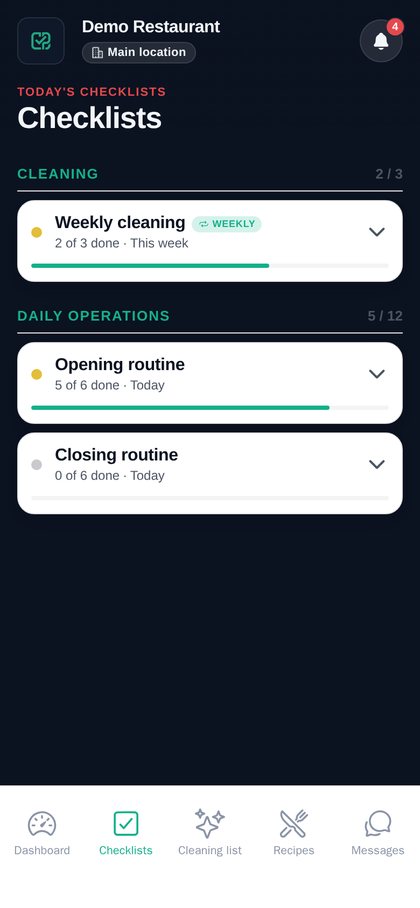
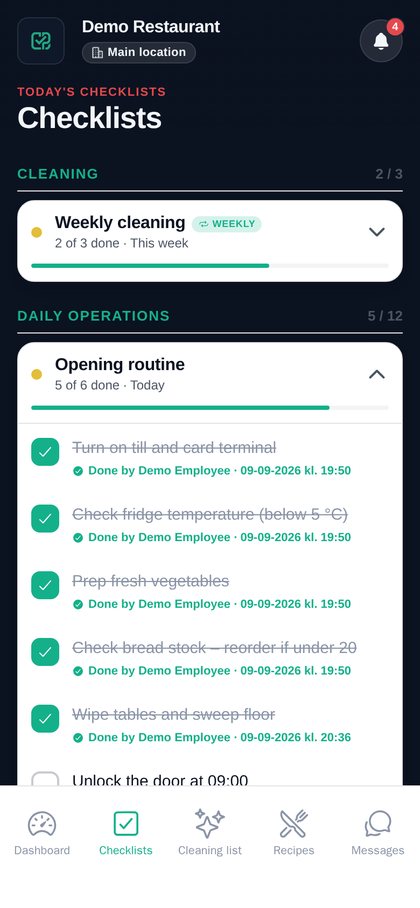
The manager creates the checklists once. Staff open the app and tick items off one by one. Every tick is saved with a name and time, and half-finished lists carry over to the next shift.

  • Daily and weekly routines – pick the weekdays yourself
  • Name and timestamp on every item
  • Attach a photo as proof (e.g. the cleaned area)
  • Progress per list – "4 of 6 completed"
  • Works per location if you run several sites
Example from a real dayAt 09:00 Sofie opens the shop. She opens "Opening routine", switches on the till and card terminal, checks the fridge temperature and ticks off. At 09:14 it's 6/6 green – and the manager can see it from home.
Checklists – overview
Checklist with ticked items and timestamps
02 · Cleaning plans

The week's cleaning spread across days – so it doesn't become "some other day"

The cleaning list only shows today's tasks, split into "Open" and "Close". When a day is done it turns green in the weekly overview. If something was skipped, everyone can see it the next day.

  • Fixed tasks per weekday – e.g. "Clean the grease filter" every Tuesday
  • Weekly overview with status for each day
  • Full history: who did what, and when
  • Different plans for different locations
Example from a real dayTuesday says "[Close] Clean grease filter in the hood". Jonas does it on the evening shift and ticks it at 21:20. Wednesday morning Sofie sees Tuesday is green – and continues with Wednesday's tasks.
Cleaning plan per weekday
03 · Equipment & maintenance

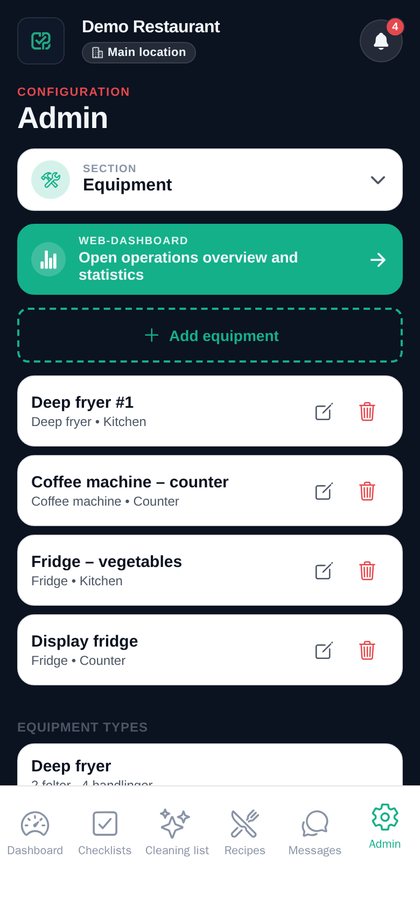
The fryer, the fridge and the coffee machine – with service log and status

Register your equipment with your own fields (model, oil type, target temperature …) and the actions to log: oil change, descaling, temperature check, cleaning. The status colour tells you what needs attention.

  • Your own equipment types with custom fields and actions
  • Status colours: green (OK), yellow (warning), red (critical)
  • Log with notes and the name of whoever did it
  • History per machine – useful for service and warranty claims
Example from a real day"Fryer #1" is yellow. The manager writes in chat: "Can you change the oil before lunch?" The employee changes it, logs "Oil change – oil was dark" – and the status flips to green.
Equipment list with status colours
04 · Recipes & training

Step-by-step guides so new staff are self-sufficient from day one

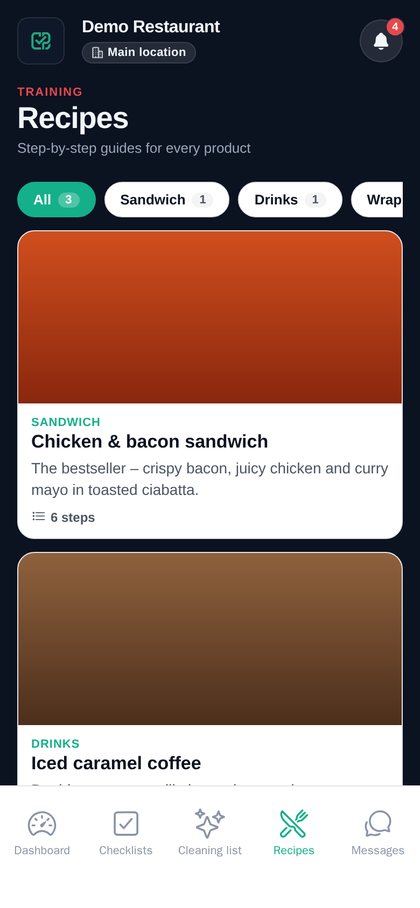
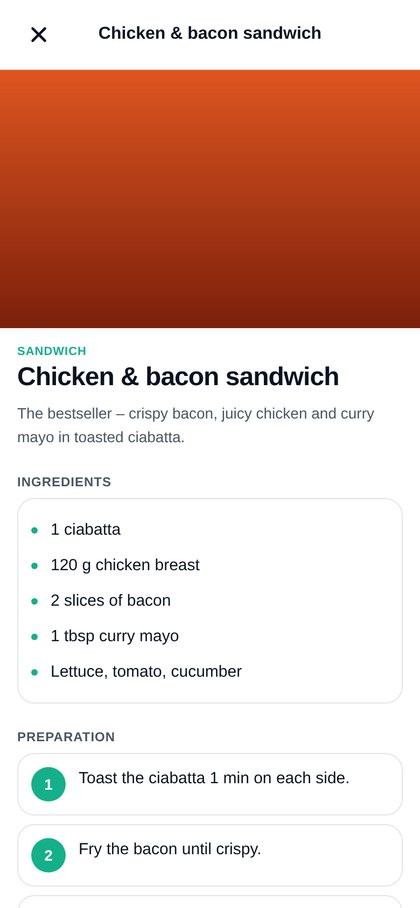
Every recipe has a photo, ingredients, allergens and numbered steps – with pictures or a short video of what it should look like. When the manager updates a recipe, everyone sees the new version immediately.

  • Categories: Sandwich, Wrap, Drinks – or your own
  • Ingredients and allergens on every dish
  • Steps with text, photo and video
  • Notification to the crew when a new recipe is added
Example from a real dayIt's Emil's second shift. A customer orders the "Chicken-bacon sandwich". Emil opens the recipe, follows the 6 steps – "Toast the ciabatta 1 min per side …" – and makes it exactly the way regulars know it.
Recipes – overview
Recipe with ingredients and steps
05 · Messages & notifications

One channel for the crew – without private phone numbers

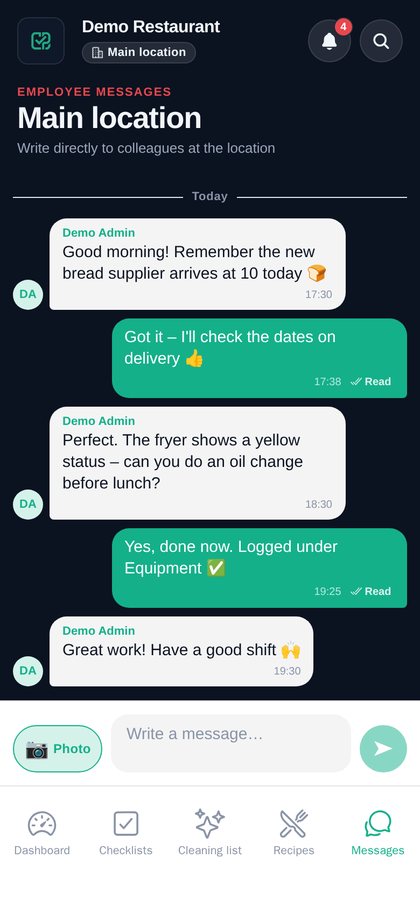
Team chat per location with photos. The notification centre collects everything new: messages, new recipes, important news and surveys – so nobody misses anything even if they weren't on shift.

  • Chat per location – share photos straight from the kitchen
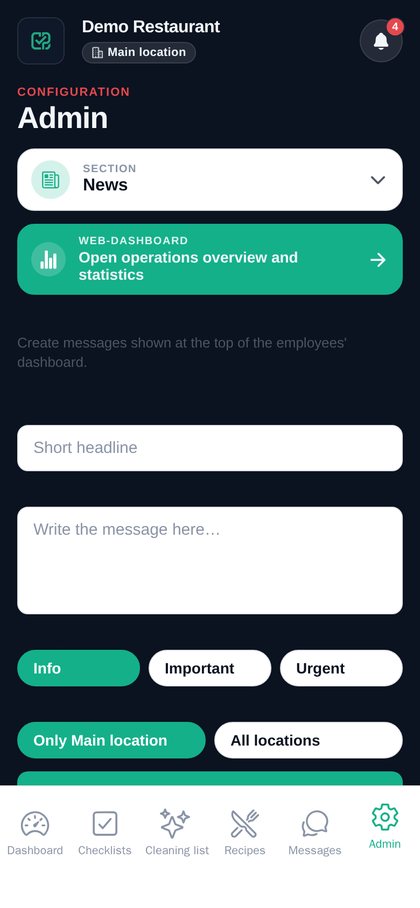
  • Important notes from management pinned at the top of the home screen
  • Push notifications on the phone (optional for the employee)
  • Campaigns with guidelines so everyone sells the same way
Example from a real dayThe manager posts "New bread supplier from Monday – check date labels on delivery". The note sits as an important message on the home screen all week, and the evening crew gets it as a notification even though they start at 15:00.
Team chat
Notification centre
06 · Web dashboard & statistics

The owner's overview – on the laptop, without calling around

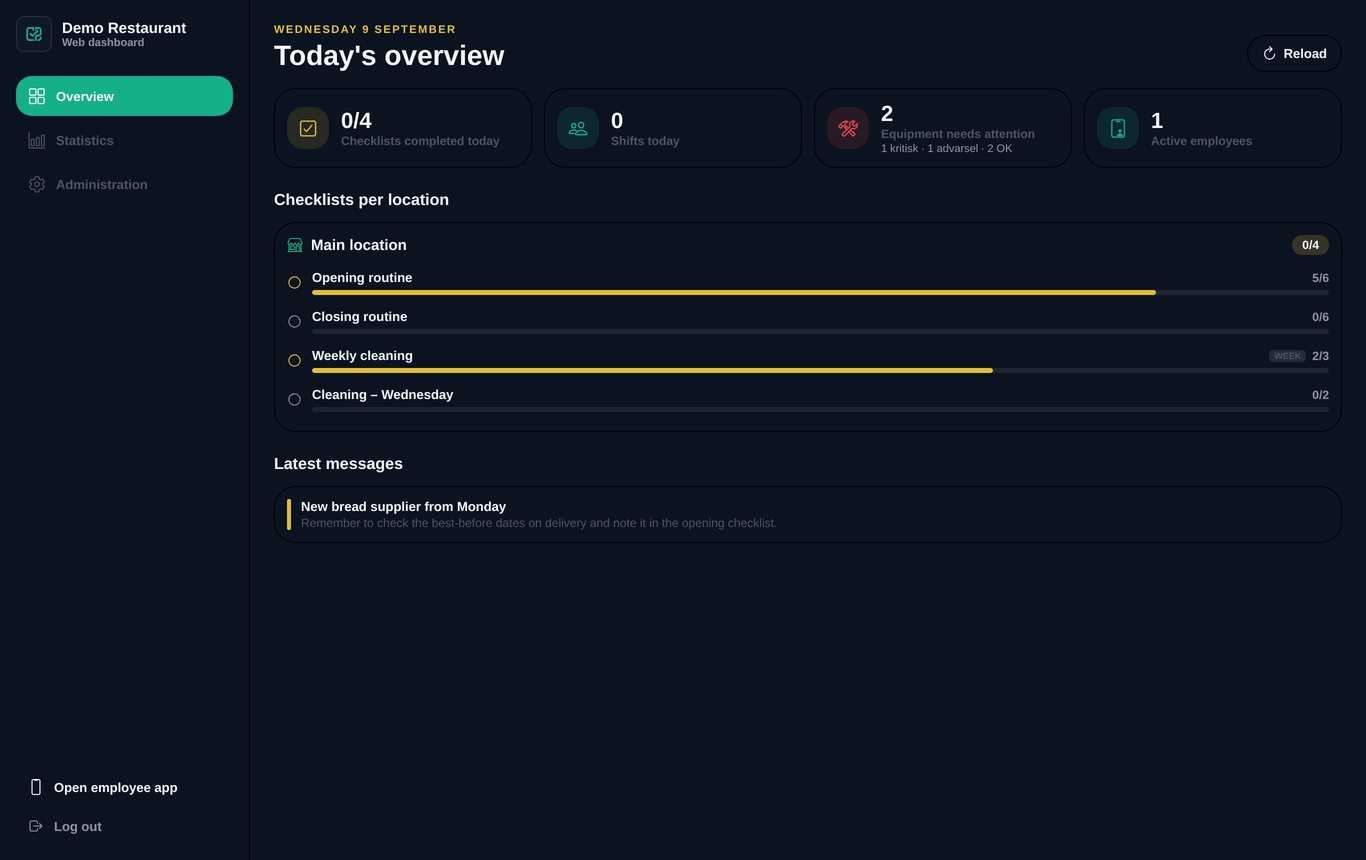
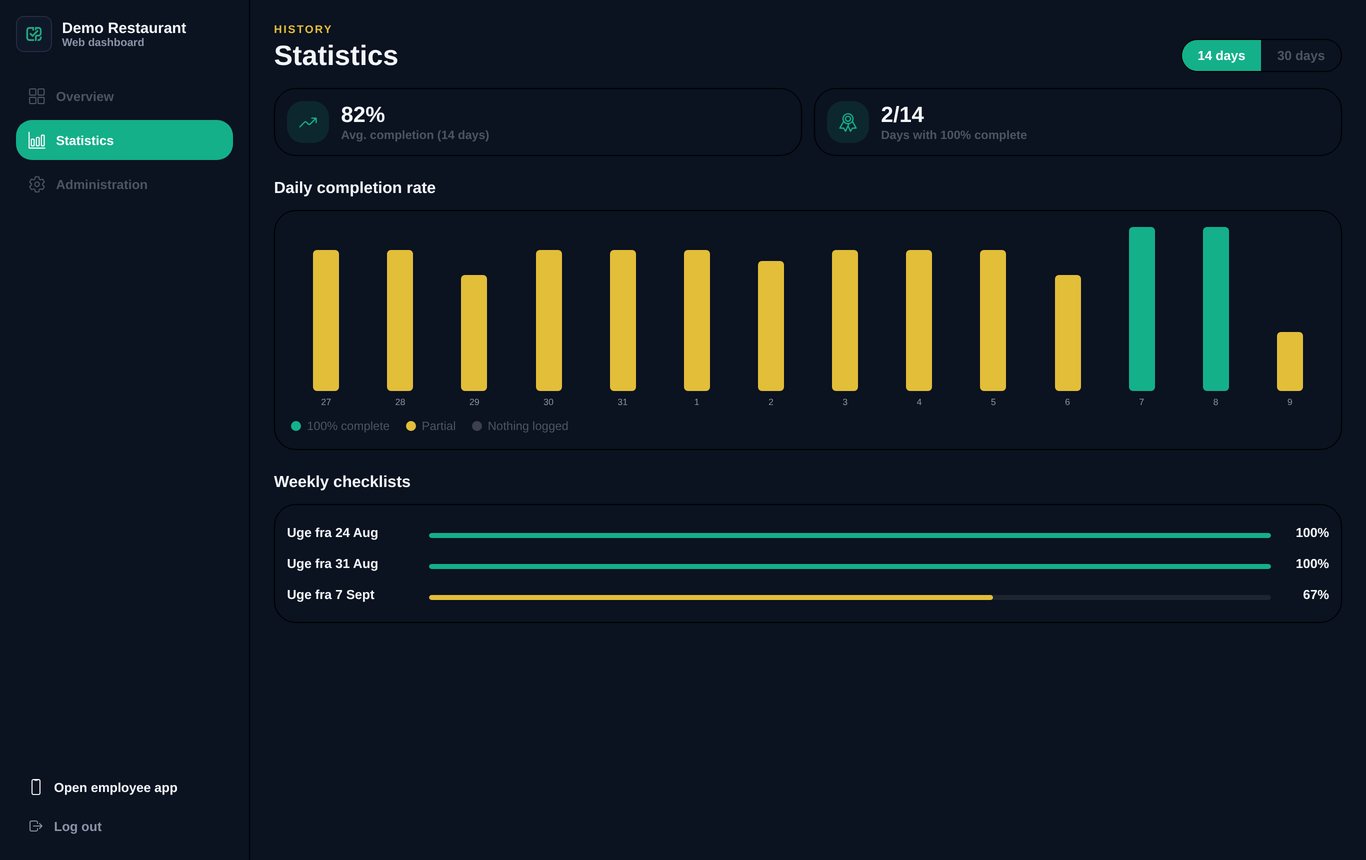
Log in on the computer and see today's status per location: which lists are complete, which equipment needs attention, who is on shift. Statistics show completion rate day by day and week by week – and where to tighten up.

  • Today's overview: checklists, equipment, staff, news
  • Completion rate per day – 14 or 30 days back
  • Weekly lists with a percentage per week
  • Manage all content from the same screen
Example from a real dayMonday morning the owner opens the dashboard with a coffee: 80 % completed over the last 14 days, two yellow days last week. A glance at the list shows it's Friday and Saturday closing – a topic for the next staff meeting.
Web dashboard – completion statistics
Also included

The small things that make the day easier

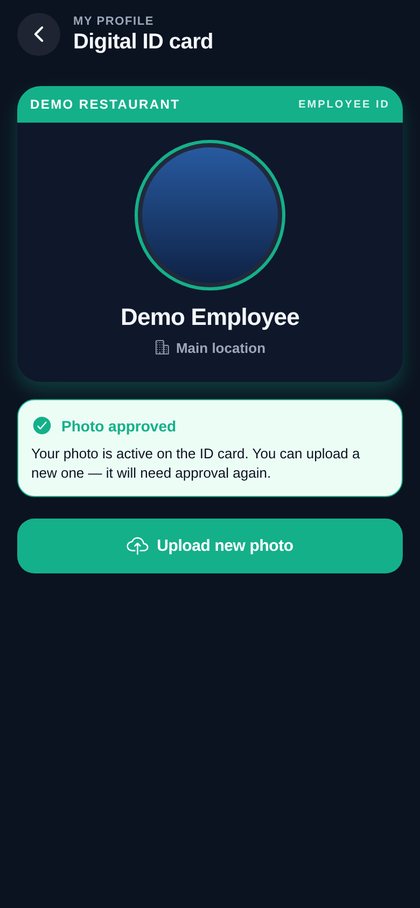
Digital ID card

Digital staff ID

The employee uploads a photo, the manager approves – and the ID card is in their pocket.

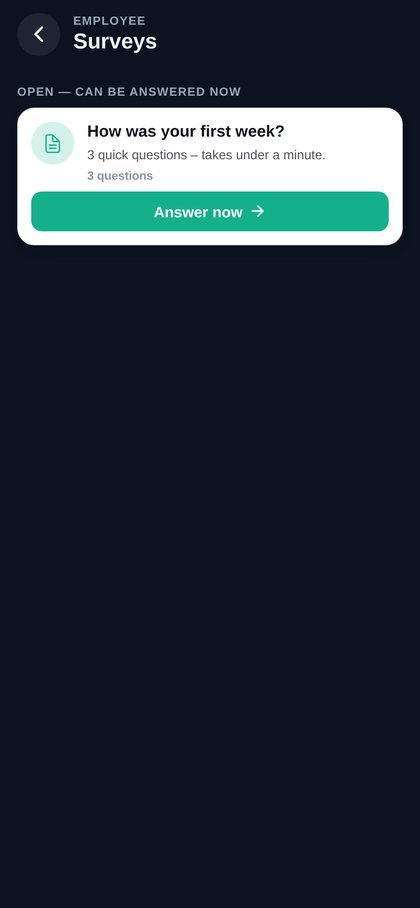
Survey

Surveys

Short surveys for the crew – e.g. "How was your first week?" – with answers collected for the manager.

News and campaigns

News & campaigns

Important notes and active campaigns with guidelines shown at the top of everyone's home screen.

Staff logins

Personal logins

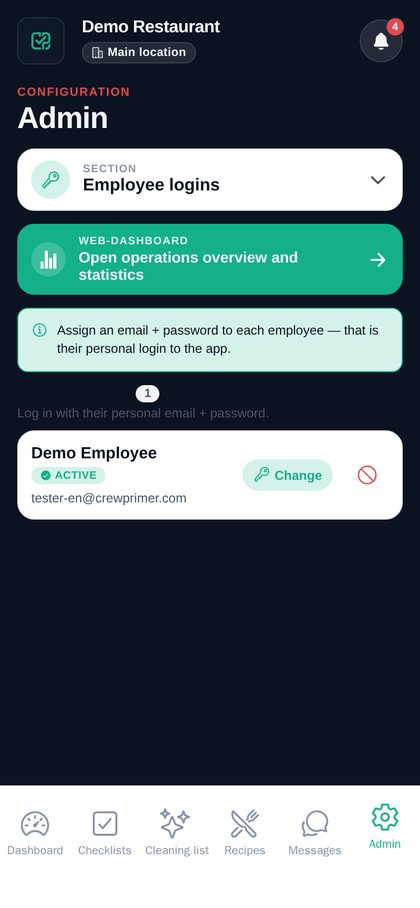
Every employee has their own login. The manager creates and resets passwords with one tap.

Your own brand

Your own name & logo

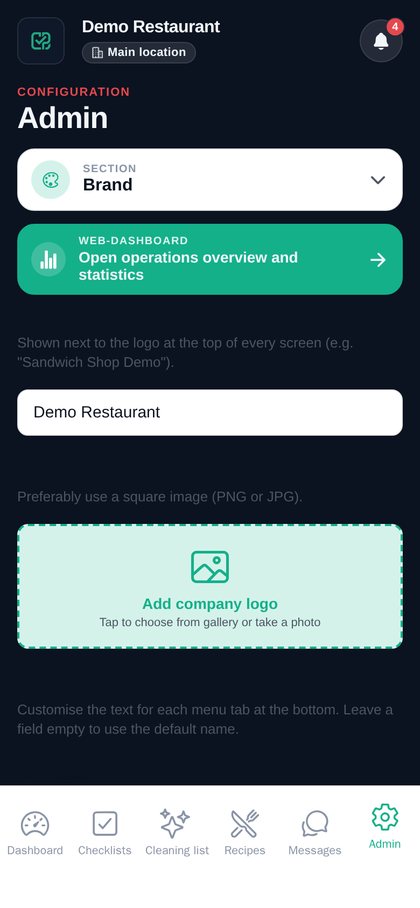
The app shows your company name and logo – fully separated from other customers on the platform.

Multiple locations

Multiple locations

Separate checklists, cleaning plans and chat per site. Staff switch with a single tap.

How it works

From "we should really get this under control" to primed – step by step

There are two roles in the app: the manager who sets the frame, and the employee who uses it on shift. Here is the whole journey.

For the owner / manager

Set up in under 5 minutes

  1. We create your companyYou get your own company name and logo on the platform – 100 % separated from other customers. We send you an admin login.
  2. Guided setup at first loginA wizard walks you through: company name → logo → locations → shift schedule (Smartplan, optional) → your first checklist. Everything can be skipped and changed later.
  3. Build your checklists and cleaning planWrite the items the way you say them in the kitchen: "Switch on till and card terminal", "Check fridge temperature". Choose daily or weekly and which weekdays.
  4. Add equipment and recipesCreate the fryer, fridges and coffee machine with the actions to be logged. Add your recipes with photo, ingredients and steps.
  5. Give your staff a loginUnder "Staff logins" you create each employee with an e-mail and a temporary password. If you use Smartplan, the staff list is imported automatically.
  6. Follow along – in the app or on the laptopToday's status, equipment that needs attention and statistics over time. Send news, campaigns and surveys when needed.
Admin – checklists Admin – recipes Admin – staff Admin – surveys
For the employee

No training needed for the app

  1. Log in with your own loginDownload the app (iPhone/Android) or open it in the browser. Log in with your e-mail and the password from your manager. With several locations you pick yours once.
  2. The home screen shows the dayImportant notes at the top, today's shifts, active campaigns and shortcuts to your ID card and surveys. Nothing to search for.
  3. Tick off during the shiftOpen "Checklists" or "Cleaning" and tick items as they get done. Take a photo where it makes sense.
  4. Look it up when in doubtRecipes with steps and photos, the equipment's service log and the chat with colleagues – all in your pocket.
  5. Get notified when something happensNotification on new messages, recipes, news and surveys – on days off too, if you want.
Employee – home Employee – checklist Employee – recipe Employee – profile
A day with CrewPrimer

What an ordinary Tuesday looks like

The manager checks the dashboard

Coffee poured. The dashboard shows yesterday's closing 6/6, "Display fridge" is red – the manager writes a message to the day crew.

Sofie opens the shop

She sees the fridge note on the home screen, opens "Opening routine" and ticks: till, temperatures, veg, bread stock. 09:14 – 6/6 green.

The bread delivery arrives

Sofie remembers the week's important note – "check date labels on delivery" – snaps a photo of the delivery note and posts it in chat.

Lunch rush with a new colleague

Emil is on his second shift. He looks up "Veggie wrap with hummus", follows the 4 steps and delivers – without asking Sofie in the middle of the queue.

The fryer gets an oil change

"Fryer #1" has been yellow for two days. Sofie changes the oil in the quiet hour and logs "Oil change" with a note. Status: green.

The evening crew arrives

Jonas sees on the home screen what happened today, and that Tuesday's cleaning has "[Close] Clean grease filter in the hood".

Closing routine and cleaning

Cash-up, goods into the fridge, tables, bins, grease filter – everything ticked with a timestamp. Tuesday turns green in the weekly overview.

The manager gets the final overview

A quick look in the app from the sofa: everything complete, no red equipment. Wednesday starts from zero – no loose ends.

Examples

Three typical businesses – and what they use CrewPrimer for

Illustrative examples of how the app is set up in different kinds of kitchens.

Sandwich bar · 2 sites · 12 staff

"We never knew whether site 2 had closed properly"

Each site has its own opening and closing routine and its own cleaning plan. Chat is split per site so messages stay relevant. The owner follows both sites from the dashboard.

Setup: 2 locations · 4 checklists · 14 cleaning tasks/week · 18 recipes · Smartplan shifts on the home screen
Sushi takeaway · 1 kitchen · lots of new staff

"Training took two weeks – now it takes two shifts"

All rolls and menus are recipes with photos of the finished result and short videos of the technique. New staff get a survey after their first week so the manager catches gaps in training.

Setup: 42 recipes with photos · 6 videos · "First week" survey · ID cards for everyone
Pizzeria · expensive equipment · open evenings

"The oven broke and nobody knew when it was last cleaned"

Stone oven, dough mixer, cold room and dishwasher are set up as equipment with fixed actions: weekly clean, temperature check, service. The log shows who did what – and when the technician last visited.

Setup: 7 pieces of equipment · 19 log actions · critical status alerts the manager · closing routine with photos
Pricing

Simple pricing – no lock-in

Per company per month. Unlimited staff on every plan. Change plan as you grow.

Basic
For the small takeaway
299DKK/mo
  • 1 location
  • Checklists & routines
  • Cleaning plans with log
  • Personal login for staff
  • Unlimited staff
  • News & campaigns
Get started
Enterprise
Chains & multiple brands
Contactus
  • Unlimited locations
  • Everything in Pro
  • Your own logo & colours (white-label)
  • Priority support
  • Help with setup and importing recipes
Get a quote

Prices are indicative and exclude VAT. Contact us for an exact quote.

FAQ

Frequently asked questions

How long does it take to get started?

We create your company the same day we talk. The setup itself – name, logo, first checklist – takes under 5 minutes with the guided wizard. Most teams have the full opening/closing routine and cleaning plan in place within an hour.

Do staff need to download an app?

The app is available for iPhone and Android and can also be opened in a browser on phone or computer. Staff log in with their e-mail and a password handed out by the manager. Push notifications require the app.

Can we use it with several locations?

Yes. Each location can have its own checklists, cleaning plans and chat, while recipes and equipment types are shared. Staff pick their location at login and can switch with one tap. The owner sees every location in the dashboard.

Do you integrate with our shift schedule?

We integrate with Smartplan: today's shifts and the staff list are imported automatically, so you don't create staff in two places. If you use another system, shifts can be entered manually – and do tell us which system you use.

What happens to our data?

Your data is kept separate from other customers', communication is encrypted and we back up daily. Staff can delete their own account in the app. Read our privacy policy.

Is there a lock-in or setup fee?

No. You pay month to month and can stop whenever you like. There is no setup fee – on Enterprise we even help you import your recipes.

Can we have our own logo and name in the app?

Yes, every plan shows your company name and logo on the home screen, login screen and ID card. Enterprise can also get custom colours (white-label).

What if an employee forgets their password?

They tap "Forgot password?" on the login screen and receive a 6-digit code by e-mail to set a new one. The manager can also reset it with one tap under "Staff logins".
Contact

Book a free demo

Tell us briefly about your restaurant and we'll show you the app in 20 minutes and set you up – no strings attached. We reply within 24 hours.

E-mail: support@crewprimer.com

Bogo Sandwich Shoppen ApS · CVR 44104709
Vandmanden 5, 5a · 9200 Aalborg SV · Denmark